
Recently, Microsoft released a new activity type to trigger Power BI Semantic Model refreshes. A great step forward to have a native pipeline activity and no longer need to setup complex steps with APIs and authentication manually. Or is there still a case?
In this blog I will elaborate on what this new Pipeline activity exactly is, various scenarios in which it can be applied and finally some edge cases and shortcomings.

Fabric Data Factory Pipelines
You might be familiar with Pipelines, as part of the Fabric Data Factory workload, Azure Data Factory or Pipelines in Azure Synapse Analytics if you will. If not, I would recommend reading this documentation. Essentially, the workload in all different platforms is the same although there are differences in the details. I will zoom in to all those details here, but there is specific feature that I want to highlight in this blog, which is the Semantic Model refresh activity in Fabric Data Factory Pipelines.
Building a pipeline is intended to ingest, prepare and transform data as part of your data solution. One of the popular tasks is the copy data activity, which allows you to bulk copy from source into a Fabric Lakehouse for example. Given many other items allow you to do rich data transformations in Fabric, like using Notebooks or Dataflows gen2, your solution logic might be spread across different items. Depending on your level of knowledge on each of these items, you might want to pick the one that best suits the goal you want to achieve.
In this complex landscape with many different data ingestions and transformation items, Pipelines can also serve as orchestration. You want to avoid setting scheduled on each of the items individually, like start the notebook at 3.15am, which takes on average 5 minutes, so at 3.20am I start my Dataflow and so on. There is a high risk of interfering processes in that case, if one item takes longer or is interrupted, it might affect your entire flow. Using a Pipeline as central orchestration will make your life easier here. With a Pipeline, you can have a single schedule, which orchestrates all your items back-to-back.

Above example shows a Pipeline, which calls another pipeline to be executed. Based on the green lines we can see that the dataflows will only be executed on succession of the first pipeline activity. All the way to the right, we see two which I tend to call information activities. If all previous tasks succeed, a status update will be posted in a Teams channel. If the activities result in a failure, a mail with error message will be send.
Orchestrate Semantic Models
In case you’re using Semantic Models as part of your Power BI solution, you also might want to trigger a refresh of those automatically after all your transformations. Ideally, you include this in the Pipeline as well, which was a big hassle before! Back in 2021, I wrote a blog on how to trigger Power BI refreshes from an Azure Data Factory Pipeline and using some API calls from within PowerShell to automate a single table refresh. This setup included a lot of complexity around the authentication steps to do before, calling a webhook and even Azure Automation. Fow a while, you could already simplify this setup by using the Enhanced Refresh API to ease the whole Azure Automation part and just execute from within the pipeline.
During the Fabric Community Conference in Las Vegas (March 2024), Microsoft announced a new Fabric Data Factory activity, which allows you to directly orchestrate a Semantic Model refresh. A great step forward in making this whole setup much simpler but just having a single activity to trigger the refresh! You can easily add this to the end of your pipeline now as a final step (before the information activities).

As part of this new Pipeline activity, we can orchestrate any Semantic Model which we have access to. After adding the new activity, the first step is to setup a connection after which you see all workspaces and all Semantic Models appearing which you have access to based on the chosen authentication method for the connection. This allows you to also trigger Semantic Models in other workspaces if these are dependent on processes happening in another workspace. Also, in the advanced tab you can configure whether you want to wait till completion (this affects when the success or failure action will be triggered) and specify optional parameters like Max parallelism, Retry count and the Commit Mode. If these parameters don’t ring a bell for you, I recommend reading this documentation.
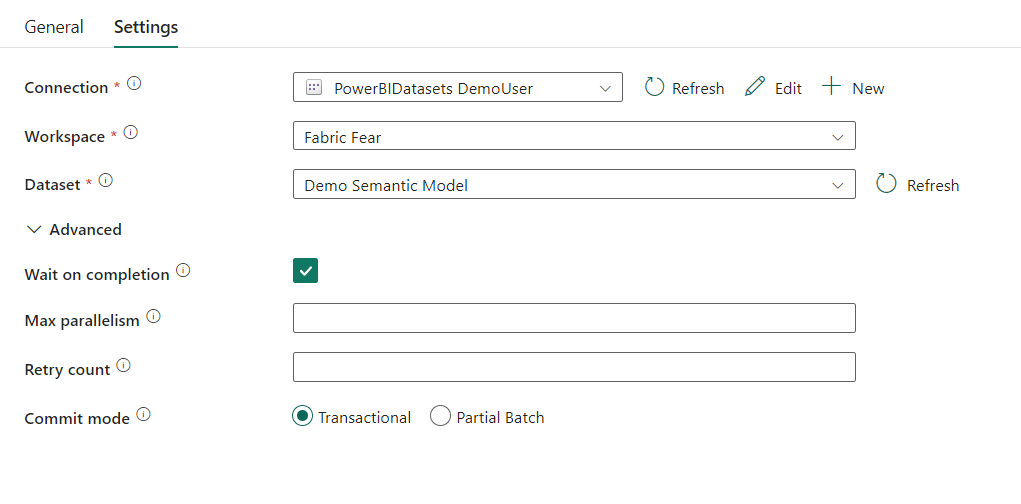
Also, check this documentation if you want to setup a Pipeline from scratch using this new activity!
Scenarios
I hear you thinking… this new Pipeline activity is part of Fabric Data Factory, but not Azure Data Factory. So, if I’m already in Fabric, I could also benefit from things like Direct Lake storage mode – which kind of makes a refresh operation obsolete, right? Well not entirely! There can be many scenarios where a refresh activity could still be useful!
Direct Lake Semantic Models
Or should I say reframing activity for the first scenario? Cause in case of Direct Lake, we no longer talk about a refresh but reframing instead. Semantic Models on Direct Lake storage mode still cache the data inside the model. Based on the temperature, data slowly but surely evicts from cache over time. When new data is added in your Lakehouse, it can automatically show up in your Semantic Model, if you configured so, toggling on the setting to keep your Direct Lake data up to date.

However, having this feature enabled, it can randomly evict data from cache and result in capacity impact, when you’re not expecting it. Instead, you want to have full control on when the data is evicted from cache by having this reframing operation as part of your Pipeline. In case the concepts around data Direct Lake, temperature, cache and eviction are new to you, I recommend reading one of my earlier blogs on this topic.
Import Semantic Models
You might not be using the full potential of Microsoft Fabric yet and still have a Semantic Model on Import mode, or your requirements simply don’t fit well with Direct Lake for various reasons… in that case, you can still benefit from the new Pipeline activity if your workspace is at least on a Premium or Fabric capacity with Fabric workloads enabled. You can still consider a setup to first refresh certain Dataflows after which you trigger the Semantic Model to refresh upon completion. Or simply to setup a notification process using the information activities as I highlighted before.
The missing pieces
At the time of writing, the new Pipeline activity for Semantic Models only allow full refreshes of the Semantic Model. However, there are plenty of cases where refreshes of individual tables or even partitions are required. Therefore, the usability of the new activity is limited.
But don’t worry! You don’t have to fall back to complex setups with all the authentication steps and all that. Given you’re already using Microsoft Fabric for the Pipeline, consider setting up notebook using Semantic-Link (v0.7>) which also allows you to trigger refreshes of Semantic Models. Sandeep Pawar (MVP) describes very clearly in his blog how you can refresh individual tables and/or partitions of your Semantic Model by using Semantic Link.
Obviously, you can add a step to your Pipeline to orchestrate the notebook that makes use of Semantic Link to achieve full end-to-end automation which could replace the Semantic Model refresh activity.

Wrap up
A great new feature has been added by having a single activity in a Fabric Data Factory Pipeline to orchestrate your Semantic Model Refreshes. Though, usability is limited to the exact use case you may have. Semantic Link can help to still achieve your goal for full automation of those use cases, but requires a more code-driven approach which might not be comfortable to each and everyone.
Fingers crossed that the new Pipeline activity will be expanded in the future to also add a request body, in which tables and partitions can be specified for example!
 Data - Marc
You can also refresh semantic model with sempy in notebook.
LikeLike
Exactly 😉 that’s the point I highlight at the end, where you orchestrate a notebook from the pipeline to still achieve central orchestration
LikeLike
Pingback: Refreshing a Power BI Semantic Model via Fabric Pipelines – Curated SQL
Hi Marc,
thanks for a good blog post.
We have tried the activity with several client tenants, and get the same issue.
in the UI and the monitoring hub, it looks like the refresh is successful. However, when we check the actual data, it is evident that the data did not actually get refreshed. Also it says that the refresh only takes 30 seconds. Which normally takes 3-5 minutes.
Have you tried to check, if the data in your semantic model is actually refreshed after using the activity?
LikeLike
Hi Sune,
We have the same exact issue on our side.
It looks like the refresh is successful, however, the data did not actually get refreshed.
Hope it will be solve soon
LikeLike
Hi both,
Hmm… weird. I think you can best open a support ticket to check what went wrong and how to resolve.
—Marc
LikeLike
Pingback: how to refresh individual tables or partitions in power bi semantic models from fabric data pipelines. – tacky tech.
Pingback: how to refresh individual tables or partitions in power bi semantic models from fabric data pipelines. ( Cloned ) – tacky tech.
So, we are not the only one with this problem.
Support Ticket already open, they look into it:
(Still in preview mode, so it may be normal to have a bit of issue with this new feature)
https://community.fabric.microsoft.com/t5/Data-Pipelines/New-Semantic-Model-refresh-activity-refresh-unsuccesfully/m-p/3834390
LikeLike
Great article! 👍
LikeLike
Pingback: how to refresh individual tables or partitions in power bi semantic models from fabric data pipelines.