In the previous blog, I wrote about data temperature as part of Fabric when you’re using Direct Lake storage mode. In that blog, I explained how you can get insights in the temperature of a column, what that temperature means and what the impact of the temperature is on columns that are queried more often.
In this blog, I will continue this story by elaborating on a process called framing and how you can influence data eviction to drop data from memory. Finally, this blog goes into more details on how you could use Semantic Link in Fabric Notebooks to warm up the data for most optimal end-user performance.

Note: Microsoft Fabric is in a public preview state at the moment of writing this blog. Elements explained might be adapted to change in the future. This blog elaborates on my findings and experiences at the moment of writing this blog (early October 2023).
Circling back
A very brief summary of the previous blog. By default, there is no data loaded into memory with Direct Lake storage mode. But at soon as you start querying that data, it will load that data into active memory of the capacity. The more a certain column gets queried, the higher the temperature of that column becomes. Using Dynamic Management Views, you can get insights in the current temperature and basically get insights in which data is in memory right now.
In case you did not read the previous blog about Understanding data temperature with Direct Lake in Fabric, I recommend you read that first to get the context right before continuing reading this.
Dropping data from cache
There are scenarios in which data is dropped from cache. This happens automatically when you hit the refresh button of the dataset from within the workspace. Alternatively, with the option enabled to automatically get new data in your dataset, it will trigger this refresh as soon as new data appears in OneLake. As a result, with every update of the dataset, all data will be dropped from cache. In fact, there is not really a refresh happening, but only a meta data scan in which the “frame” is defined in which delta files a read into the dataset.

Framing
The dropping of the data in itself and getting the newly added data available in the dataset, is what we name framing. This is all based on data that lives in OneLake which is stored in one or more delta files. As soon as a new file is added, it has to drop the data from cache and need to redefine the frame in which the files should be read in the dataset. We could image it like this:
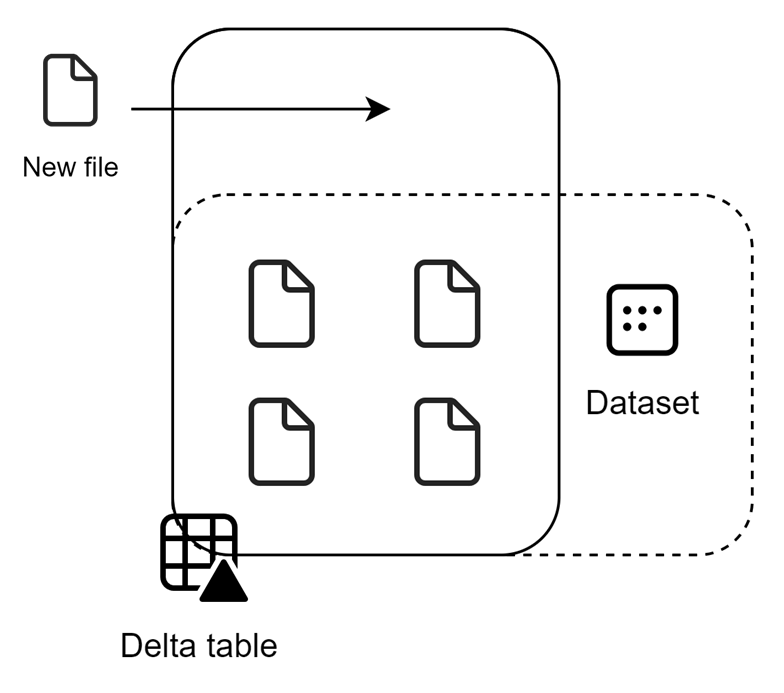
The dashed line shows the current number of files that are read as part of the dataset. That is currently set to 4 files. As soon as file 5 comes in and we want to see this data in the dataset, framing has to take place. The framing process, could be visualized as follows:
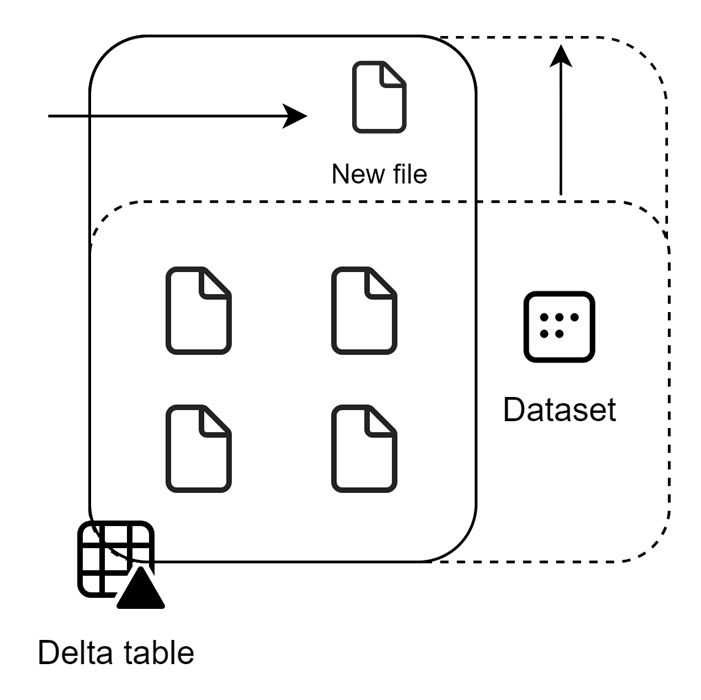
In this picture, you see the frame being extended. With this meta data scan (aka refresh), all data gets dropped from cache first, then the frame will be redefined to include the 5th file. Without going into too much detail on this, Chris Webb recently wrote an excellent blog about what it means to refresh a Direct Lake Power BI dataset.
Reframing in action
Let’s start similarly as the previous blog with having a dataset which we connect over XMLA to DAX Studio. As soon as we’ve done that, we can see no data is currently loaded into cache.
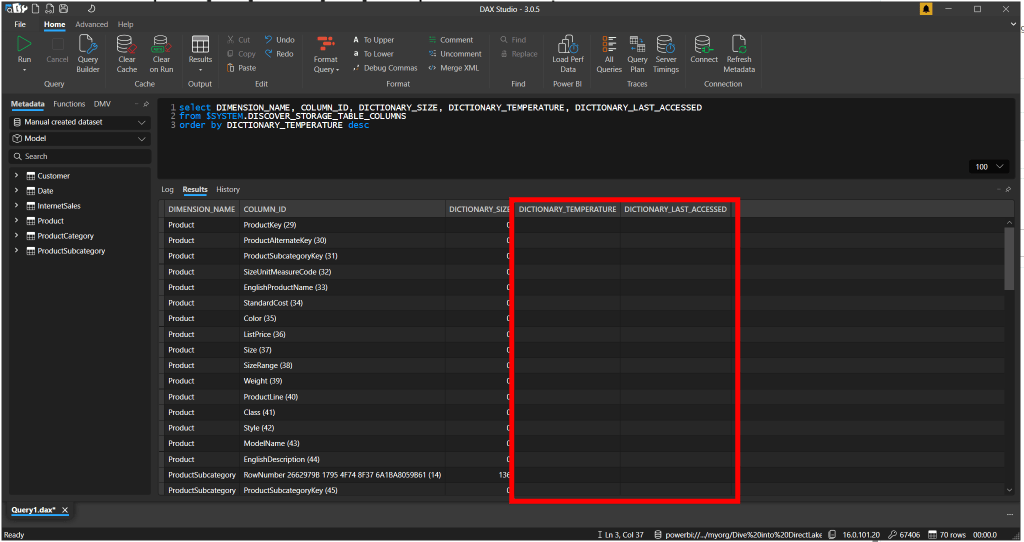
As soon as I open a report, we can see that the data temperature starts rising for those columns that we queried via the visuals, calculations and relationships connecting the various tables together that a part of the query.
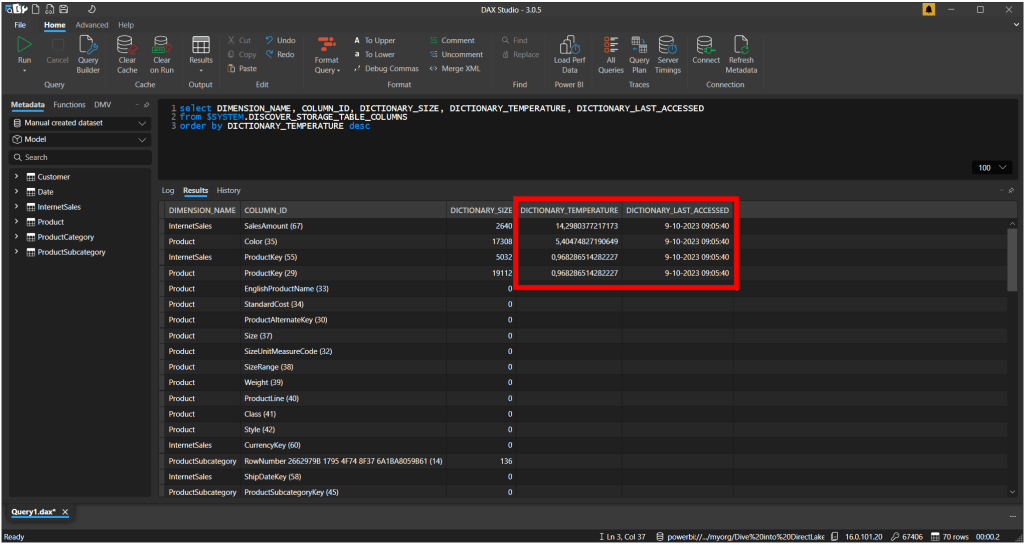
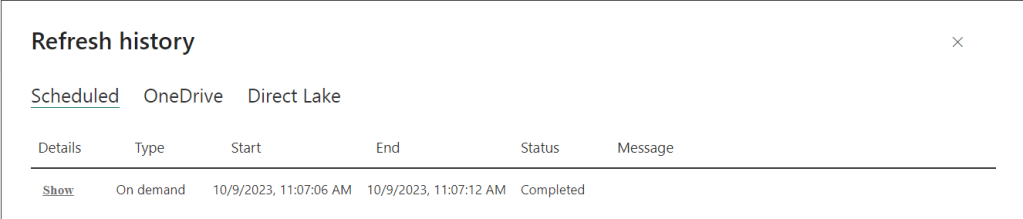
As soon as we press the refresh button, we see the refresh (reframing) succeeds in just a few seconds. It is enormously fast, as no data actually get’s copied, but only the reframing is happening, and it redefines which parquet files to include in the dataset.
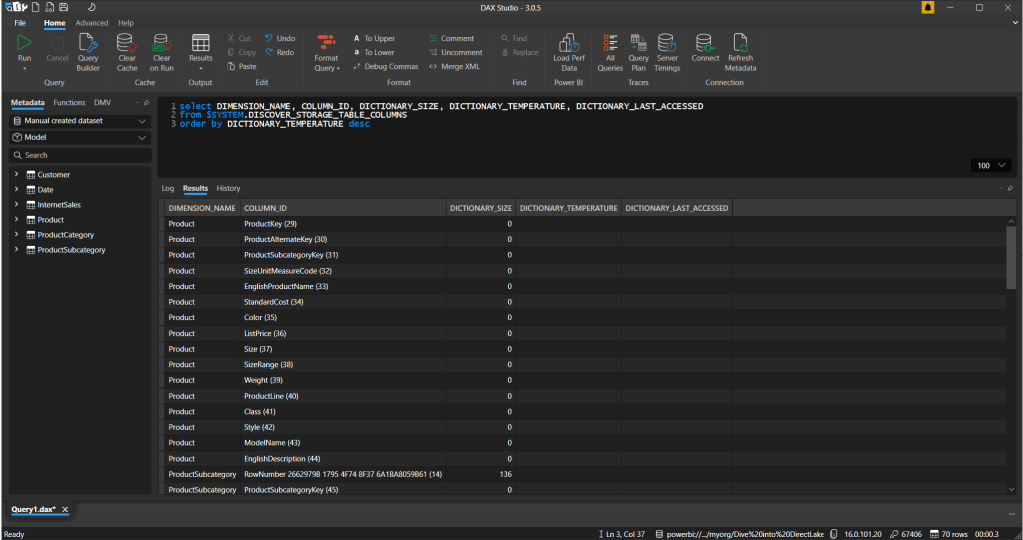
As soon as we re-run the same DMV, we can see all data got evicted and dropped from memory. Even with the report still open, all data is dropped from memory.
No end-users’ sessions will be affected by this process, given the front-end cache is still showing the data. However, as soon as I start interacting with the report by cross-filtering, highlighting or applying a filter, it will reload the data needed into cache again.
How to keep it warm?
After data is evicted from cache, the first query that will hit a certain column will trigger the operation to load data into cache and might therefore perform a bit slower. You ideally don’t want you end users to experience this slight performance decrease. To avoid that from happening, you might want to make sure that the key-columns of your dataset are loaded into cache right after the reframing operation.
To reload the specific columns into cache, you can consider implementing some more advanced patterns. For example, setup a process that calls the Execute Queries in Group REST API to target those specific columns.
For this example, I’ve dropped all data from cache once again. After that, I’ve used the Try It operation from the API documentation page to trigger a certain table to be loaded into memory.
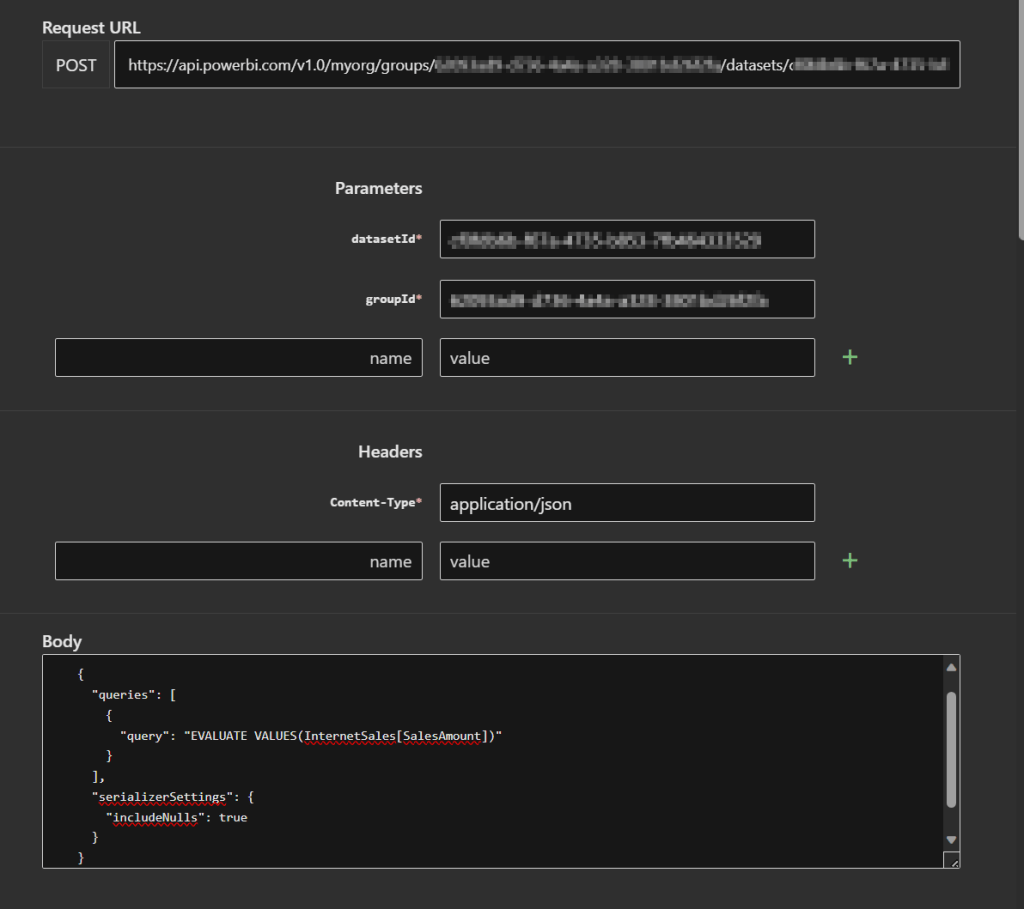
In this case, I just queried the Sales Amount column with a DAX expression listing all values in the column. Obviously, you don’t want to do this with a billion-record table. But just for demo purposes I want to show that executing a query on the dataset over API will load the data into cache again.

Using semantic link to warm-up!
The above example just shows the concept on how you can reload data into cache. You can imagine implementing a process in which you orchestrate your dataset refresh from a Fabric Pipeline and right after executing a few API calls to reload certain data back into memory. However, over the past week, Fabric Semantic Link was released. This allows you to execute DAX queries from a Fabric Notebook.
You can use semantic link to prepare a notebook and then centrally orchestrate your entire process end to end from a pipeline in Fabric. Following this example, I setup a notebook that queries the $ Sales grouped by Product Color. Imagine that these are two of my important attributes in my dataset, I can run a query like below from a notebook which then directly warms-up the data again.
import sempy.fabric as fabric

df = fabric.evaluate_measure(
    # dataset name
    "Manual created dataset",
    # measures
    ["[$ Sales]"],
    # groupby
    ["Product[Color]"]
)
df
The entire notebook will look like this, where in the first cell I only install the library for semantic link before executing the queries:

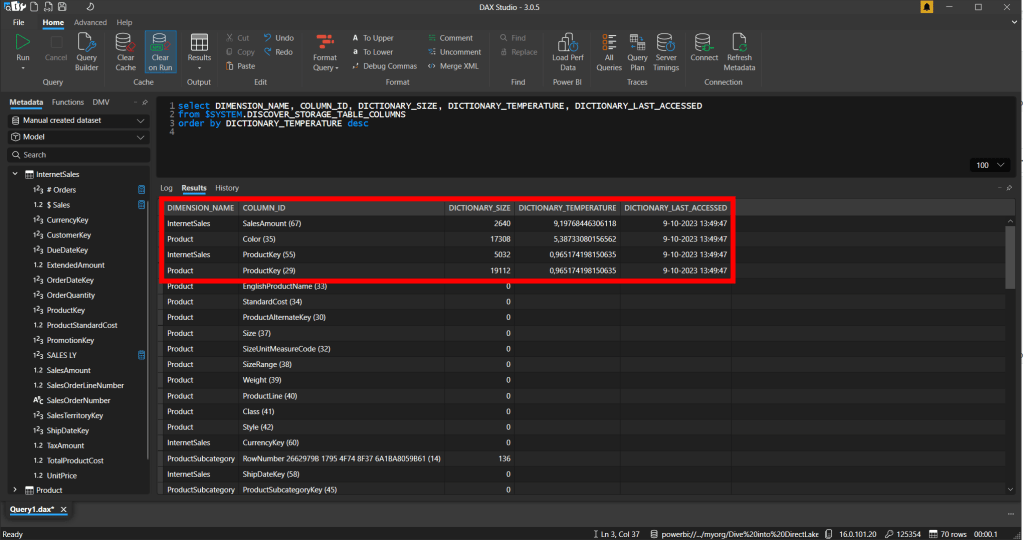
As a result, we can see that the columns Color and Internet Sales on which the $ Sales is based are loaded into cache. Next to that, we also see the two columns which define the relationship between the Product Dimension and the Sales table.
The notebook showed above is just a start. Ideally, you extend this notebook by querying the DMVs first and based on the outcome execute a query to load the column back into cache. You can consider an approach like this for example when the column is dropped from memory and there is no temperature for this column.
Next, you probably would like to execute a notebook like this directly after a reframing operation. However, setting up a pipeline in Fabric to trigger a framing operation is a bit complex still. Fingers crossed this will become simpler in the future just like we can select a dataflow and notebook from a pipeline instead of setting-up custom actions. For now, you could just schedule the notebook directly or as part of a pipeline.
Wrap-up
Basically, we can conclude that refresh == framing when we talk about a Direct Lake dataset. By running a framing operation, data will be dropped from cache to which and a meta data scan will be performed to explore which parquet files must be included as part of the Direct Lake dataset.
As a result of framing, the next query will be just a bit slower as the data has to be loaded from storage to cache again. To make sure the impact is limited on your end-users, you can consider setting up a process which queries the most used columns by using the Power BI REST API or using semantic link within a Fabric Notebook.
Ideally, you make the warm-up queries related to eviction and framing operations. More advanced setups can be created by extending the logic in the Notebooks and/or centrally orchestrating the framing and warm-up operations in a Fabric pipeline.
Finally, some words of appreciation. Parts of this content are created as part of a shared session I did at a conference together with Mathias Halkjær.
 Data - Marc
Pingback: Cache Management and Semantic Link in Fabric Notebooks – Curated SQL