
Together with the introduction of Microsoft Fabric a long-awaited feature for Power BI also became available. Git integration now allows us to connect your workspace to a git repository to sync the meta data from your Power BI dataset and report between the workspace and the repository.
At the same time, Power BI deployment pipelines are around. The pipelines help you to move content between workspaces from Development to Test and finally to Production. The question that arises, when to use what? And how do they complement each other, or maybe even clash with each other?

Git for Power BI
Yes, you’re reading it correctly! With the introduction of Microsoft Fabric, Git integration on workspace level also became available. (I recommend reading this announcement post) This allows you to sync the artifacts in the workspace to a git repository. This syncing process works in both ways. If there are new changes committed to the repository, you can pick-up these changes in your workspace, but also the other way around that new changes made in the Power BI service can be synced back to the git repository.
Setting up the connection between Power BI workspace and the git integration must be enabled first by the Fabric tenant administrator (or Power BI Service Administrator if you will). As administrator, there are three settings you can control with regards to Git integration.

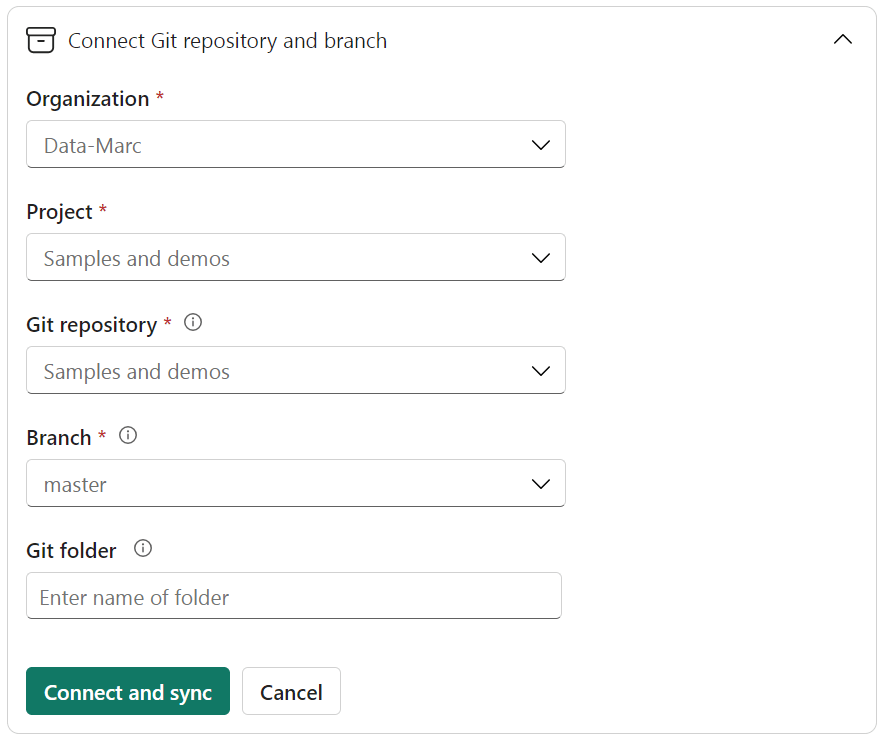
As mentioned before, Git integration is configured on workspace level. In the workspace settings, there are multiple dropdowns you must fill to bind your git repository to the workspace. At the time of writing (July 2023), there is a limitation that you can only bind to DevOps Git repositories and GitHub integration is not possible.
Power BI Project Folder aka “Developer mode”
Hand-in-hand with Git integration is the new Power BI file format. Previously, Power BI saved the output of Power BI desktop (the model and report) in a pbix file format. However, with Power BI Developer Mode, as we call it, a new format is supported from Power BI Desktop. This allows you to save your work in a project folder setup, just like you might be used to do from Visual Studio projects.

The new and open format contains at least one folder for the dataset, one folder for the report and a file with the pbip extension. This pbip file opens the folder in Power BI Desktop with which you can make changes to the file and save in the same folder structure. However, you don’t have to use Power BI Desktop. You can also use any text editor you like to make changes to the files that are part of the dataset and report folders. Today (July 2023), the dataset folder contains a model.bim file, which is a json format and challenging to make manual changes to, given the escape characters in for example DAX expressions and table definitions. However, the announcement of Tabular Model Definition Language (TMDL) will change this format in the future to a YAML-like format that is “human readable” and easier to maintain and edit.
Branching strategy
As I don’t want to repeat any other blogpost that have already been written by others and the official announcement blogs, I won’t go into more details on either git integration or Power BI developer mode. I take the safe assumption that you have a sufficient understanding of both concepts based on above descriptions and linked articles. Now, let’s have a look at how both complement or clash each other.
The new Power BI folder format can easily be synced from your local device to a git repository in Azure DevOps. The local files will be a local copy of the repository in which you can make changes and commit back to the repository. By doing so, you can also start a branching strategy where you work with feature branches for every work item you work on in this sprint in an Agile way of working. Also, it could be a logical step to create a branch for each DTAP stage you want to have and bind to corresponding workspaces. In that scenario, the individual feature branches will merge into the stage branch connected to the stage workspace.
In a default setup, that would mean you will work with a Development, Test and Production (main or master) branch. By deploying changes from stage to stage, you can file a pull request to merge for example dev branch into test branch. Your colleagues can review your pull request and at approval your changes from one stage will be merged into another stage. This is a common way of working and very well and clearly described in the following tutorials by atlassian:
In this approach, you solely work and rely on native functionality supported by git.
What about deployment pipelines?
Deployment pipelines are also still around and allow you to move content from workspace to workspace and with that from stage to stage. However, there seems to be an overlap in functionality since the concept of branches and pull requests allow you to setup similar concepts. Nothing is holding you back from choosing one or the other, or even combining them! Let’s have a look at the pros and cons of each.

Personally, I think deployment pipelines are easier to use and adopt than git integration. However, I think every enterprise-grade project should adopt the git capabilities Power BI offers today (in preview though during time of writing – July 2023).
Clash!
However, there is a certain risk as soon as you start combining git integration and deployment pipelines together. This is a risk you should be aware of before you enable one or the other. If you follow the concept having a branch in git for each workspace and having them connected. So, you got dev, test and main (representing production) branches. Imagine also having a Power BI Deployment Pipeline connected to all three workspaces.
Following the git approach, you want to create a pull request to move content from Dev to Test. Based on that, a review will happen by a colleague who approves your request before the actual deployment happens. Next, the workspace must be synced with the git repository and corresponding branch before the approved content shows up in the next stage.
However, this process could be by-passed by pushing the changes across stages by using the deployment pipeline. As a result, content might reach the test or even production stage without checks and approvals. Also, the content in the workspace is not on par with the content in the git repository any longer. If at the same time a git pull request got approved and the git repository got updated, the sync between the workspace and git repository might lead to conflicts. Resolving these conflicts could be a challenge figuring out what exactly is the latest version and where it came from.
Wrap up
Although there is a certain overlap in functionality, and it might be superfluous to configure both. Of course, there is a huge “it depends” in here. Cause if you only connect your development workspace to git and use feature branches to structure your development process, you can still use deployment pipelines to move content across stages. Above all, making common agreements with your team about what to use and how to use it, is a wise step to take. Personally, I would recommend choosing one or the other to avoid clashes. If you start embracing the git integration, consider disconnecting your workspaces from any existing Power BI deployment pipeline it might still belong to.
A useful addition posted by Rui Romano (Principal PM at Microsoft) on LinkedIn, is following the best practices for CI/CD for Power BI provided by Microsoft in the docs.
 Data - Marc
Good article.
How to change parameters or datasource when moving from Dev to Test with git ? Can we do it with Azure DevOps?
LikeLike
The current git integration does not support change of parameters. Microsoft documented some best practices – in which they only connect git to the development workspace and use Power BI deployment pipelines to move content across stages. Docs can be found here: https://learn.microsoft.com/en-us/fabric/cicd/best-practices-cicd?WT.mc_id=DP-MVP-5003435
With that, you can benefit from deployment rules as described here: https://learn.microsoft.com/en-us/power-bi/create-reports/deployment-pipelines-create-rules?WT.mc_id=DP-MVP-5003435
–Marc
LikeLike
Hi,
Is the Power BI git integration only available in Fabrics, or without Fabrics as well?
LikeLike
As far as I’ve tested, it works with any type of premium or fabric. I’ve quickly tried it on my side and got it working with PPU license as well. I couldn’t find any documentation about this though.
–Marc
LikeLike
Hi Marc
Why would you need to create one branch per environment? you could have a main branch and then every time you want to deploy, you branch out into a release branch. You can then configure your Azure deployment pipelines to deploy the release branch from one environment to another. Thoughts?
LikeLike
Hi Arash,
That’s definitely also an option. I think there are many ways to get it working. My main point for this blog is that you should be aware that the different approaches can also clash. Therefore choose one and communicate well about it in the teams to all adopt the same way of working.
–Marc
LikeLike
Really good article, Marc. I wasn’t aware of the possible issue wth clashes between a GIT repo and Deployment Pipelines so that’s really useful to be aware of before considering how we roll this out within our team.
LikeLike
Hi Mark,
I’m just coming back to this because I had a thought this morning about the possible issue you’ve mentioned above:
“Also, the content in the workspace is not on par with the content in the git repository any longer. If at the same time a git pull request got approved and the git repository got updated, the sync between the workspace and git repository might lead to conflicts.”
Now that a PBI workspace can sync with a DevOps GIT repo, I would’ve suspected that they would also remain synchronous. What do you think?
Thanks
Kris
LikeLike
Synchronizing is a manual step, you have to explicitly press a button to sync with the git repo. Knowing that, you can perfectly get it in sync with git, however any changes made in the Power BI Service directly will be overwritten.
–Marc
LikeLike
We believe these tools are complimentary, and there’s no collision between them. Git integration is best suited to manage code and collaboration in the dev team, while deployment pipelines is best used for releasing the changes to Production.
We just published a step-by-step guide to show you how to connect the tools together- https://learn.microsoft.com/en-us/fabric/cicd/cicd-tutorial.
Happy to hear your thoughts!
LikeLike
Thanks for your valuable addition and reference to the guide Nimrod!
–Marc
LikeLike
Pingback: Power BI and Git | Voice of the DBA