
Last week, I had a situation in which a client wanted to purchase a reserved instance Fabric capacity. Me being me, I assumed it would be super straight forward to purchase through Azure. However, at some point I was lost in the process where the official documentation confused even more. In the end, I figured out and managed to get a capacity running based on the Reserved Instance pricing. I didn’t find any other blogs or articles describing this confusion or specific case. Therefore, I decided to write down my thoughts and findings in a blog.
This blog is not only relevant if you work with Microsoft Fabric, but also for anyone currently working with Power BI Premium. Given the deprecation of Power BI Premium capacities, you have to switch to Fabric capacities sooner or later.

Pricing options for Fabric capacities
Fabric capacities are the compute behind all Microsoft Fabric services and Power BI Premium functionality. Varying in size, you can purchase capacities in Azure either in a Pay-As-You-Go (PAYG) pricing model or as a Reserved Instance (RI). Each of these options has it’s pros and cons.
PAYG capacity
- Can be paused and resumed at any time.
- You only pay for the time the capacity is running.
- Easy up/down scale at any time.
- Higher price point than RI.
- In case of overcommitment (bursting) of the capacity, it can lead to additional cost when the capacity is paused before smoothing finished. Additional time needed to “smooth out” the consumed capacity units will be added in additional consumed minutes after the capacity was paused.
RI capacity
If you’re completely new to Reserved Instances, I would recommend reading this documentation about Azure Reservations to get more familiar with the concepts. In specific for Fabric capacities:
- Capacity Units (CUs) can be purchased in bulk and split over multiple capacities.
- Pricing is ~40% cheaper for the reserved CUs.
- Up/down scaling still possible;
- Scaling within reserved CUs for the same price point.
- Scaling outside reserved CUs for PAYG pricing.
When to choose which?
The questions many customers ask me, is what type and size capacity they need to purchase. In most cases, it’s almost impossible to say and you will get the typical consultancy answer: “it depends”. Only in case you need any of the >=F64 features, like CoPilot or unlimited content sharing for Power BI items, I can say you need at least an F64 and take it from there. In case you get started with developing a solution in Fabric with pipelines, notebooks, lakehouses and so on you can start with smaller capacities as well. Microsoft documentation about the capacity SKU planning is also very limited (at the time of writing this blog – September 2024). In the end, the required capacity SKU is dependent topics like;
- How much data you want to load,
- How often do you load new data,
- Complexity of data transformations,
- The way how, and how often data is consumed,
- Complexity of queries run on SQL endpoints,
- …and probably a bunch more parameters.
Therefore, I would say put the Fabric Trial capacity to its best use. As a trial, you can get an F64 for a limited amount of time. Use this capacity at the start of your project and closely monitor the usage of this capacity through the capacity metrics app. In case you see only ~25% of the F64 is utilized, you can decide to purchase an F16 (F16 = F64 / 4) as Reserved Instance.
Above simple calculation leaves out any additional considerations to run non-production workloads (development, test and acceptance workspaces) on a separate capacity from your production workloads (production workspaces). Keep in mind though, that capacity utilization measured during development phase on a trial capacity might not be representative to loads on production. Typically, there is no or very limited end-user interaction on non-production environments. Also, data volumes are typically higher on production systems than any non-production systems. Therefore, I may be wise to make sure you always have so headspace on the capacity. Following the example calculation above, an F16 may not be enough, and you may want to opt for an F32 instead to be prepared for larger data volumes and end-user interactions to be added on top of any engineering workloads.
Purchasing Reserved Instance capacities
In case you are completely new to purchasing Reserved Instances, like me, this basically means you commit to Microsoft to at least buy X amount of a certain resource for a selected period. Typically, this is for 1 or 3 years. Cause you commit to the purchase of the resource, you will receive a discount. For Fabric capacities this is ~40% but can vary based on contractual agreements your company may have with Microsoft. Reserved Instances in that sense are cheaper than Pay-As-You-Go pricing, as you allow Microsoft to properly plan their resources in the data centers for example.
Coming from a Power BI background, I was used to purchase Power BI Premium capacities through the Microsoft 365 license portal. Since deprecation of Power BI Premium capacities, this is no longer an option. All capacities have to shift to Fabric capacities which are purchased through the Azure portal.
Reserved Instances can be purchased in the section “reservations” in the Azure portal. This part is pretty much straight forward and clearly documented. Reservations can be tailored to a specific scope at purchase, for example management groups, subscriptions and resource groups. Also, the region can be specified.
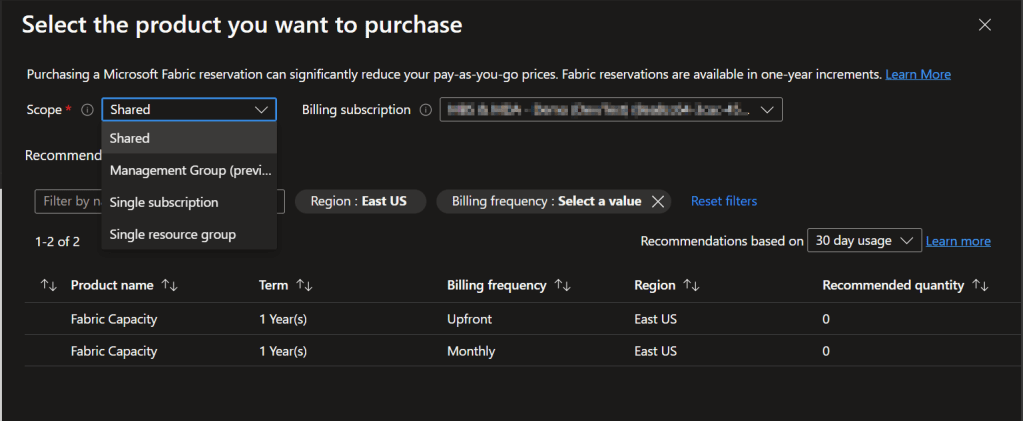
Microsoft documented the purchase process for Fabric Capacities Reserved Instances in this documentation. However, this documentation also left some aspects unanswered, or better say adds some confusion.
I made a reservation, and now what?
After purchasing the reserved instance, you basically don’t have a Fabric capacity yet. All you did at that point, is just reserving a certain amount of Capacity Units (CUs) as a reservation. The documentation only talks about purchasing the reservation – not in really about setting up a capacity based on the reservation.
To continue where the documentation stops, basically you’re at the point where you reserved an F16 capacity for example. That means you have 16 capacity units reserved. How you split them in the end, is what you can decide yourself. For example, you can split it in 2 times F8, or 1x F8 and 2x F4. Or any other split that will meet your requirements. But with only the reservation, you don’t have these capacities yet.
Long story short, what you have to do, is following below steps:
- Purchase the required capacity units as reservation via Azure Reservations.
- Go to a resource group, or setup a new one.
- Create a new capacity, just like you would have done in case of PAYG capacities.
- When you create a new capacity, make sure the scope (Management Group, Subscription, Resource Group) matches the reservation done in step 1.
- When selecting the capacity size, the PAYG pricing is shown (CONFUSION!), please ignore.
- When the newly created capacity is deployed in the same scope, the pricing of the reserved capacity units will apply automatically.
- Use Azure Cost Monitoring to see the actual cost of the capacity.
Basically, the point which was not described in the documentation is how to get the actual capacities. With Power BI Premium, you had to go to the Power BI Admin Portal to convert capacity units into one or multiple capacity(ies). The concept with Fabric reserved instances is similar but works slightly different, as you need to create the capacities in Azure and not in the Fabric admin portal. The point that led to a lot of confusion for me at least, was the point where I had to create a capacity in Azure and basically ignore the prices that were listed at creation, which are the Pay-As-You-Go prices. The price that will be applied to your capacity, is the one of the reservation(s) you made in the configured scope. In the end, you just have to trust the process and above all monitor your cost!
I already have a PAYG capacity, how do I convert this to a RI?
The next question that came up in my mind, what if I already have Pay-As-You-Go capacities running at this moment? Should I recreate all my capacities as part of a Reserved Instance and with that migrate all my workspaces from one capacity to another?
The short answer is “No”. If you purchase a reservation in Azure in the same scope as your current Pay-As-You-Go capacity(ies) is (are) running, you will start benefitting of the reservation and discounted price. You don’t have to setup a migration or anything. So, in fact it’s pretty easy to start benefitting from a discounted price.
Final words
Let’s start with a shout-out to Alex Dupler, who answered some of my questions when I was searching for answers myself. Thanks for that! All by all, I personally believe the documentation is providing an incomplete view. It mainly focusses on buying the reservation but misses the part of converting a reservation into an actual capacity to which you can assign workspaces. I hope this blog helps others from running into the same questions and avoid the confusion.


Pingback: Microsoft Fabric Capacities and Reserved Instances – Curated SQL