
Lately, I found myself struggling using the Power BI REST API to add a service principal to the (Fabric) workspace. After I engaged with some other folks, I managed to succeed. In this blog I will elaborate on the mistake I made and how I got it to work. For some this might be a less useful blog. Though, I still wanted to blog this even if it is for my own memory on how to do this.

Why would you automate adding a service principal
There are many cases in which you might want to automate stuff in Fabric. Things like automating a Power BI dataset refresh, reading metadata from all datasets in a workspace over XMLA endpoints to generate documentation or something else. In my case I wanted to add a service principal to all workspaces that reside in a specific Premium capacity to read all meta data from that workspace.
Given a Fabric workspace = a Power BI workspace and the other way around, you can basically take this approach no matter if you’re using Power BI solely, or exploring the full potential of Fabric already.
Calling the API
In my case, I wanted to execute these tasks as a Fabric administrator. Meaning, with my admin account I can control all workspaces using the APIs, without having direct access to it. Reason why I still wanted to add a service principal to that workspace, is because I don’t want to have a user-specific account involved when executing automated tasks like best practices analyzers or reading meta data or any other automation.
After listing all the workspaces on the capacity first using another API, I used the Admin – Groups AddUserAsAdmin API to run in a loop over each workspace to add the service principal. The API call in itself is pretty straight forward including the workspace id.
POST https://api.powerbi.com/v1.0/myorg/admin/groups/{groupId}/usersThe body that we need to send as part of this API call for adding a service principal is not listed for the Admin API call. However, you can find an example body when you have a look at the Groups – Add Group User API. An example of the body for adding a service principal could look like the following:
{
  "identifier": "1f69e798-5852-4fdd-ab01-33bb14b6e934",
  "groupUserAccessRight": "Admin",
  "principalType": "App"
}
So far nothing to complex I though. Getting the object ID from the top ribbon in Azure AD (or Entra ID if you will) shouldn’t be that hard.
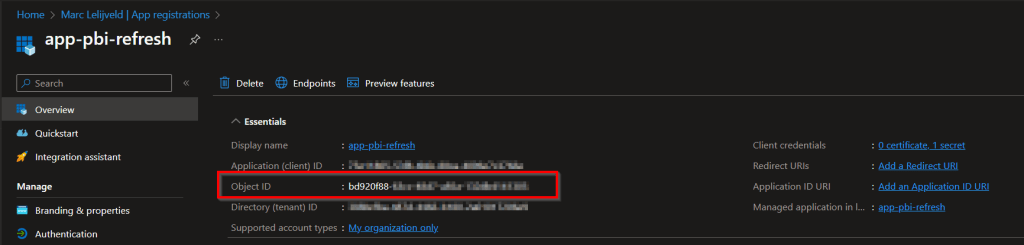
Though, I was wrong! I kept running into issues identifying that it could not find the service principal in Azure Active Directory with errors like below.

The documentation was not very clear for me to figure out what was going wrong. Looking at the description of the identifier I had to specify in the body was least useful given it said: “Identifier of the principal”.
As I said in the short intro, I engaged with some other folks before I finally got it to work. Luckily the community is always there to help each other! Turns out that the identifier you have to specify in the body, is not the Object Id that is listed in the top ribbon of the App Registration when you’re looking at the Azure Portal. Instead, you have to get the Object Id which you can get from the related Enterprise Application – listed as “managed application in local directory” in the top ribbon.
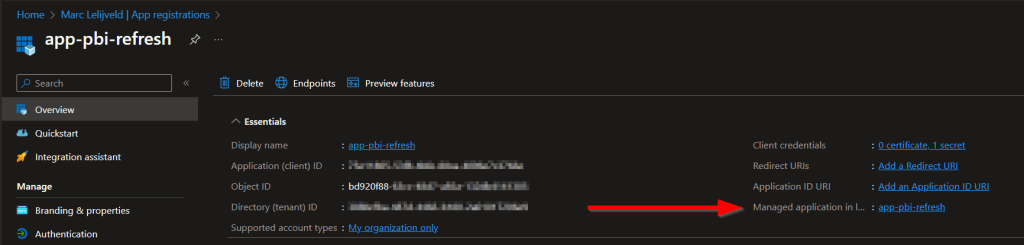
After clicking the name of the App registration, you will end up at the Enterprise Application page of Azure Active Directory. Right there, you will find another Object Id which is the right one you have to specify in the API body.

This should help you to succeed automating steps where the identifier of a service principal is asked. To my experience, this was not entirely clear from the documentation, therefore this blog.
Personally, I used PowerShell to execute these APIs. I’ve added a new code snippet to my Power BI Automation github repository to help you get started.
 Data - Marc
Pingback: Adding a Service Principal to a Fabric Workspace via API – Curated SQL
I was reading through Rui Romano’s pbiscripts repo recently, and I noticed a pretty clever trick in one of his scripts: He dynamically extracts the service principal’s object ID from the base64-encoded access token. 🤯 Here’s a link to the specific line in the script where he does this: https://github.com/RuiRomano/pbiscripts/blob/7e0d90de3e013274633c16c81c54cdecd988157e/Admin-RefreshHistory.ps1#L33
LikeLike
Thanks for this!!
LikeLike
Thanks, worked like a charm!
LikeLike