When working with Notebooks in Microsoft Fabric, exporting and reusing them across environments or tenants might seem like a harmless, even convenient, task. Whether you’re sharing a template with a colleague, moving assets between workspaces, or contributing to the community — the last thing you’d expect is to accidentally include data along with your code.
But that’s exactly what can happen.
In this post, I’ll walk you through a recent test I ran after a chat with Emilie Rønning sparked some curiosity (and concern). What I found confirmed our suspicion: exporting a Notebook can unintentionally include printed data, potentially exposing sensitive information. Let’s dive into what happens behind the scenes, the risks you should be aware of, and what safer alternatives you can consider.
Exporting Fabric Notebooks
From a Fabric Notebook, there is an easy option to just export the Notebook to a variety of file types. The most common one is likely the Notebook as .ipynb file.
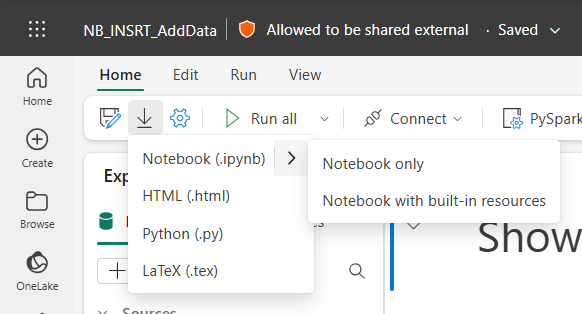
This operation can be very useful if you quickly want to bring in one of your templated Notebooks to another Workspace or to a customer tenant if you are working in consulting. For my test run, I choose the option to export the Notebook only. This will give me the .ipynb file as a local download which I can use wherever I want.
While exporting, another warning shows up. As you can see in the screenshot above, I’m using Sensitivity Labels and I enforce labeling on all items in Fabric. The current applied label is Allowed to be shared external as I use this Notebook for public demos and blogs like this one. The warning returned by Fabric, tells me that the label will be removed from the Notebook while exporting.
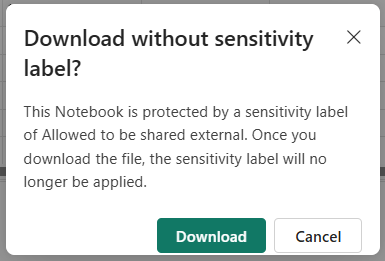
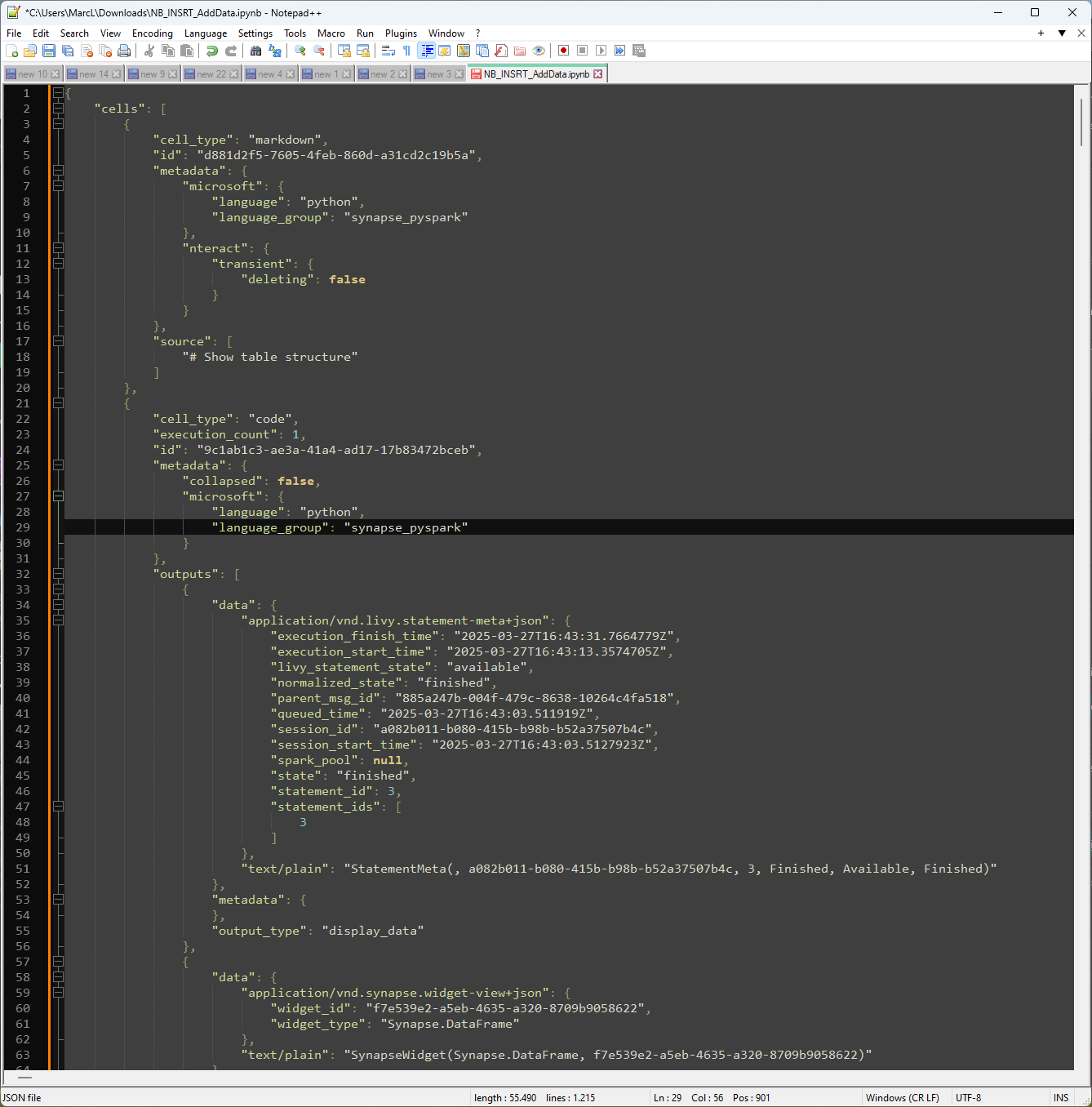
I clicked Download and end up having the file in my Downloads folder. The file can now be opened with any code editor of your preference and is formatted as a JSON file. Everything will be in a single line, but after using the pretty print option in Notepad++ (my personal favorite) I got to see the structure of all cells in my Notebook.
The risks of exported Notebooks
There is actually a big risk in exporting Notebooks. Any dataframe that you may have printed to the screen (like I intentionally did in this Notebook) is part of the export. This means that sensitive data may be part of your export.
Of course, you could argue why I print data to the screen, as you should only do this for some quick validations. Maybe not even the data itself, but only a row count to see the number of affected rows based on your data transformations, and so forward. I think we can all conclude this is not always the case and you may still have some displayed data in your Notebooks, showing the first 5 rows for example.
Can I also find the data in the JSON?
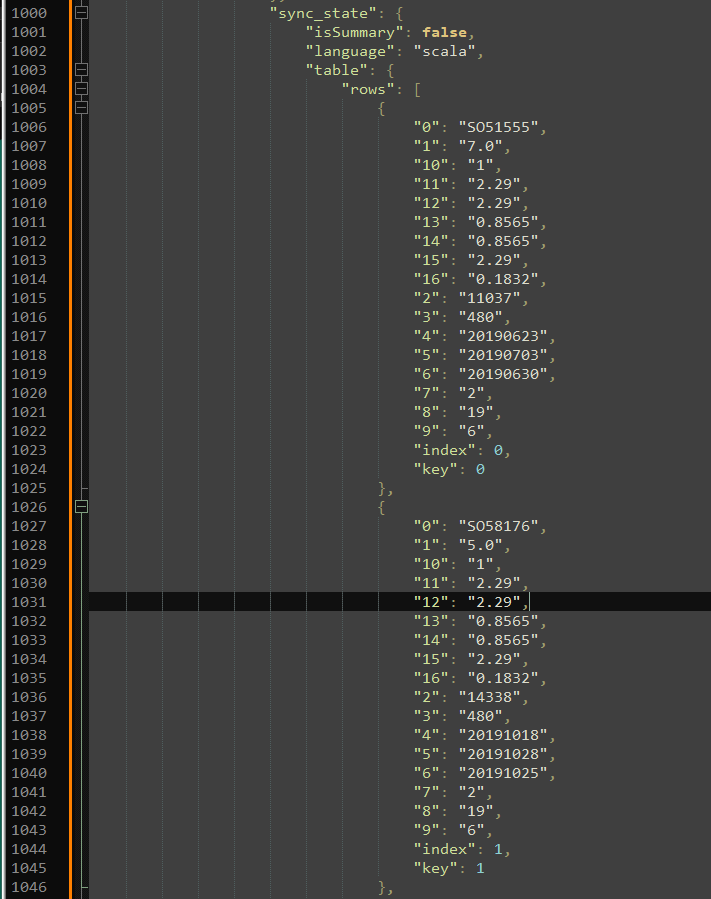
Browsing through the JSON structure of the exported Notebook, we can actually find the data itself as well. Although, it is not so nicely formatted with column names etcetera, I can actually find the data and make sense of it when I unravel the rest of the Notebook to map column names.
The real risk! Importing them again…
So far, the file only lived in my personal downloads folder on my computer. Although, I may end up with many exported Notebooks on my computer, all containing snippets of data, which is already a problem in itself, let’s take it one step further.
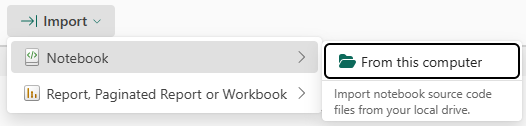
Just for the sake of proving my point, I now switch to another tenant entirely. Here, I will import the same Notebook, as I would like to use this as a template for a new solution I’m building. I start from the Workspace ribbon to click Import, Notebook, From this computer.
Then I select the just downloaded Notebook and import to this Workspace. As expected, the Sensitivity Label is gone. The message during exporting already informed me about this. Another thing which is logical to happen, is the connection between the Notebook and the attached Lakehouse (if you have any) is broken. The connection was setup based on the Lakehouse guid, which is not recognized in this tenant.
What is more worrying though, is the fact that all printed data frames are actually imported to this other tenant. For example, my first cell in this Notebook is to print the top 5 rows from a Lakehouse table to the screen. This helps me as a user to understand the structure of the data I’m working with. Notice the below screenshot shows the exact same data as showed in the JSON before.
Below all demo data, no actual data is used in this example.
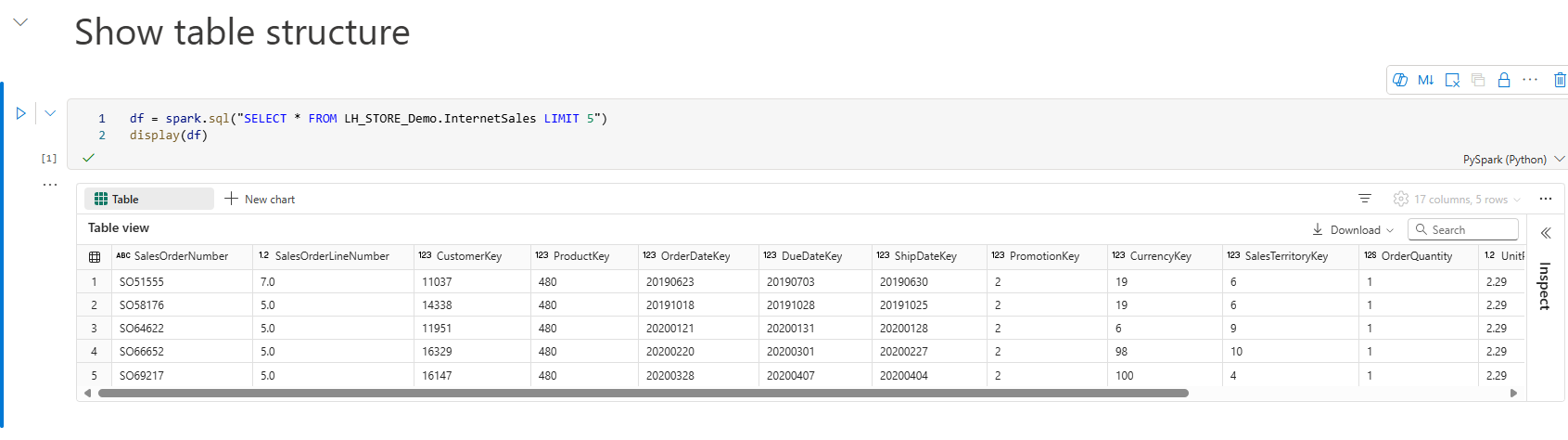
The Notebook cell shows the green checkmark on the left bottom. But no longer shows the actual last runtime and who run the cell etcetera. However, the printed data frame is still there.
Alternatives?
Of course, I’ve also tested other export options. Exporting the Notebook with build in resources will come with the same risks. If I just export the Notebook as Python (.py), it will not contain any data. However, I’m also losing the structure of my Notebook, as it drops all my Notebook cells in one and any Markdown cells are just shown as in-line comments. Similarly, the break between two Notebook cells is identified as text comment. See the example below.
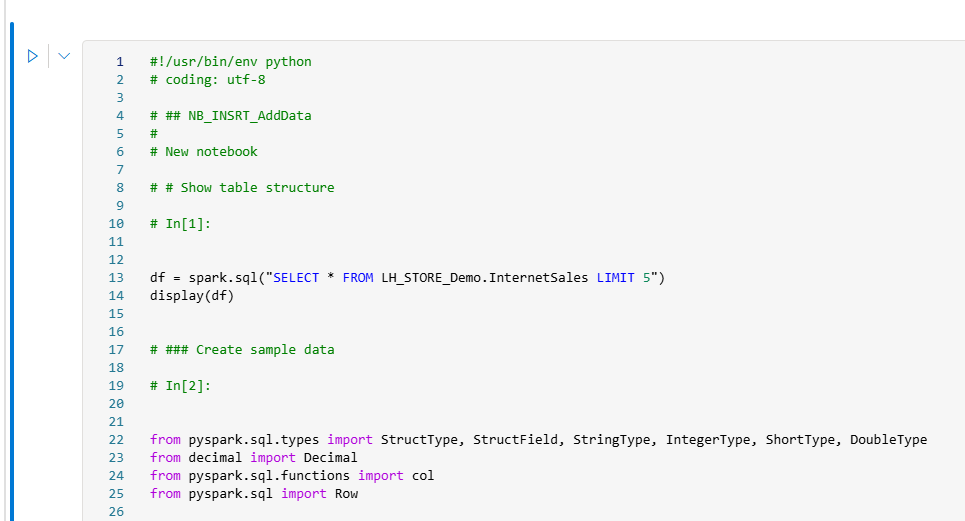
Wrap up
I personally don’t like this “feature” as it comes with high risk that your data accidentally ends up in another tenant… Of course, after the first run of this Notebook it is all gone and the new data will be shown. However, maybe I’m just exporting the Notebook and sharing with a colleague, or sharing with someone in the community? Placing the code on GitHub? Who knows…
Maybe I’m just not seeing something, but I’m wondering why the output of Notebook cells is even part of the export. What benefit would that give me? At least, I wanted to make you all aware of the fact that your data may be included if you export a Notebook. Be mindful about this and think twice before you share 🙂
 Data - Marc
Pingback: Transmitting Printed Data in Notebooks – Curated SQL