
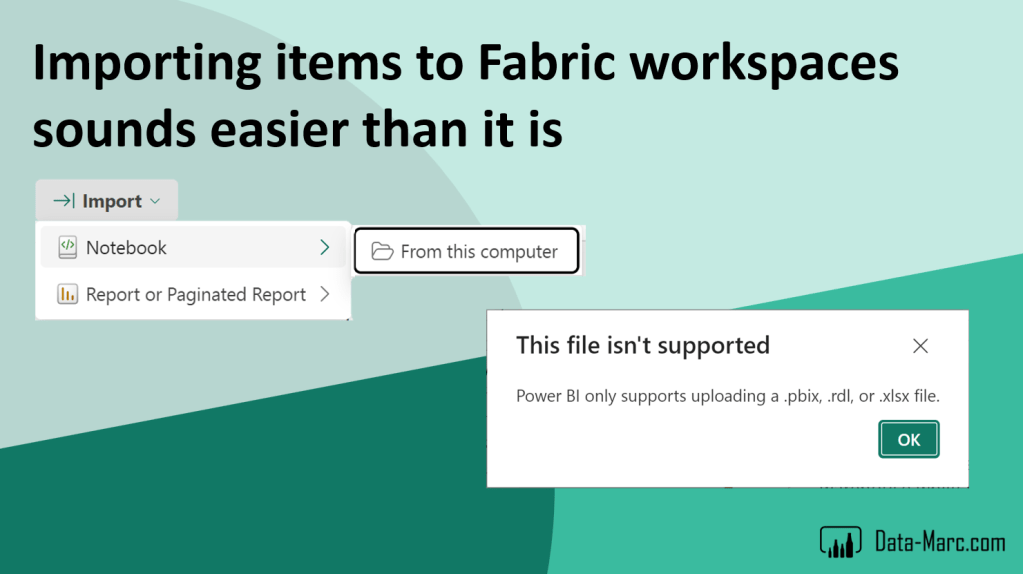
Obviously, you don’t want to start every solution from scratch. Therefore, it might be beneficial to kick-start your new solution by just importing components you already developed at earlier stages. Recently, I wanted to import a notebook to a Fabric workspace but was a bit confused. In this blog, I will further elaborate on the confusion and show how, in the end, I successfully imported the notebook to the workspace.
Case
It may be super obvious and straightforward for you, but apparently it was not for me. I found a Fabric notebook on a public GitHub repository and wanted to try it out myself. I downloaded the notebook from GitHub and wanted to just easily import it. It was less easy than I hoped for. Maybe it’s just my bad, maybe others are confused too… that’s why I decided to quickly note it down in a blog.
Importing items
Importing items to a workspace should be done through the upload button in the top ribbon of the workspace, just next to the “New” button and button to create folders.
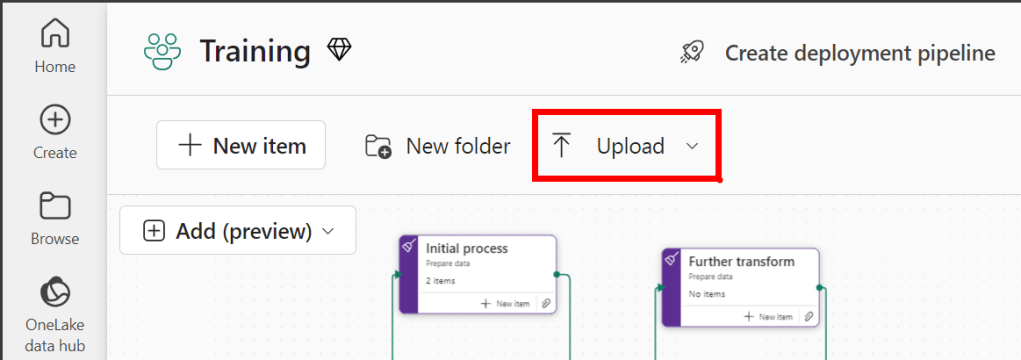
Super easy, right? But depending on the workload you’re in, the options you will get are different. Given I’m coming from a Power BI background, I made it a habit to always go to https://app.powerbi.com/ which now directs me to Microsoft Fabric. Though, I will automatically land in the Power BI workload.
Ending in the Power BI workload has never been a big issue, given I can create all Fabric items from this experience when I click the new button. Recently, the option was also added to list Favorite items when you click the “New” button, which is great! Especially if you’re not using the realtime intelligence features much for example, but develop a lot of notebooks, lakehouses, semantic models and so forward. It is way easier to quickly find that one item you are looking for, instead of scrolling through the entire list of all items.
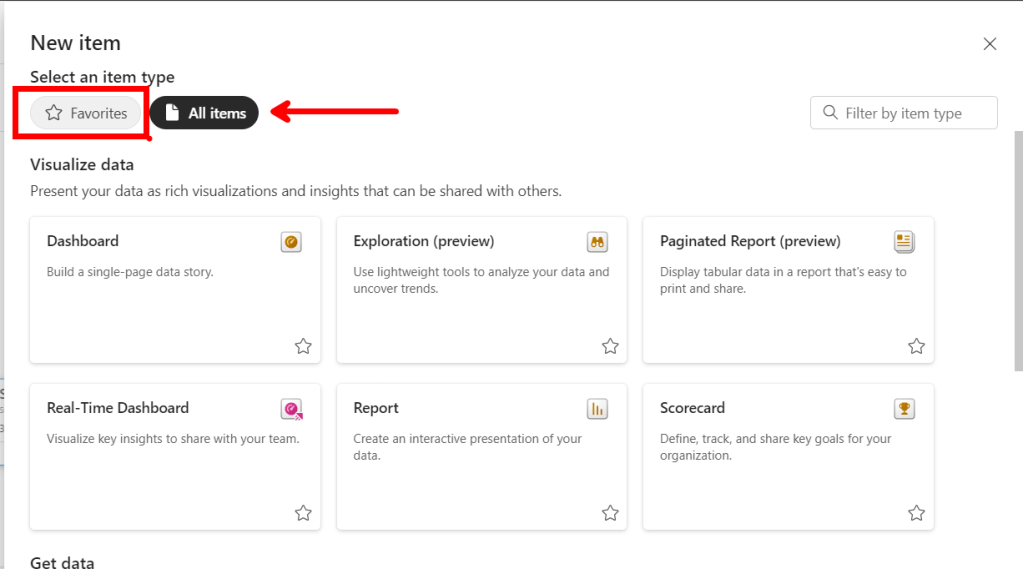
Because of the Favorite items in the new item dialog, there has not been any reason for me personally to switch between the different workloads anymore. But coming back to the original case of importing a notebook, this was actually necessary to make it happen.
Issue
The “upload” button is linked strictly to the experience you are using. Therefor, if I’m in the Power BI workload, all I get is OneDrive, SharePoint or Browse to upload .pbix or .rdl files. But the notebook is an .ipynb file which I cannot upload here.
Even when I click browse and just ignore the limitation on filetype by switching to “All Files” on the left bottom, it does not allow me to import a file with the .ipynb extension.
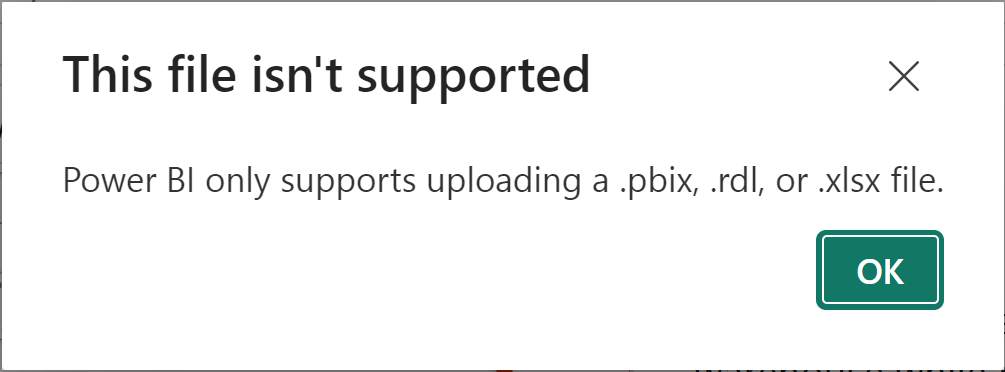
I started searching for tenant settings that may not allow me to import notebooks. Cause the “New” item experience does not have any workload related limitation anymore, so why would the upload experience have a limitation?
By the way, the error message also still refers to uploading .xlsx files. This functionality has been deprecated and is no longer supported in this way. See this documentation. If you try it, it also doesn’t work. The error message is also putting you on the wrong track here.
Switch workload!
Long story short, you still need to switch you the relevant workload on the left bottom before you can use the upload button in that context. In order to upload a .ipynb notebook file, I have to switch to either the Data Engineering or Data Science workload.
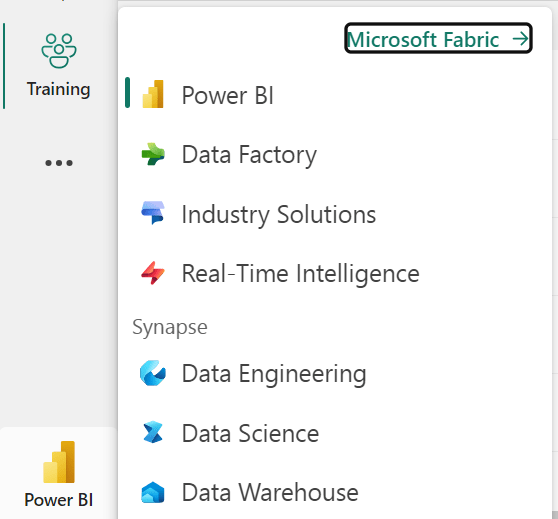
After switching to the right workload, you can perfectly upload a notebook, and the interface will also make explicit that you can do this. However, speaking of a unified experience, from within the Data Engineering or Data Science workload, I can upload Power BI Reports (.pbix) and Paginated Reports (.rdl) files though… so on that end, it is unified!

I’m confused… maybe I have to change my habit and no longer just go to the Power BI URL? Maybe it’s just an inconsistent experience? You decide. But for sure try switching the workload if you cannot find what you are looking for.
 Data - Marc
Pingback: The Challenge of Importing Items into a Fabric Workspace – Curated SQL