
I’ve heard the question pretty often from customers: “You told me to use incremental refresh, but how can I regularly run a full load or refresh onder partitions?” Well, there are perfect ways to do this using Tabular Editor or SQL Server Management Studio. But this often includes manual work to trigger the processing.
Today, this question was asked again to me. I thought, there should be a smarter way to do this. Since I recently explored more in the wonderful world of Fabric Notebooks and Python, decided to dive a bit deeper in this world and see if it is possible to script something like this using Semantic Link. And obviously, the answer is “Yes!”

Case
It happens, you configured incremental refresh in your Power BI Semantic Model and you configured nicely to only refresh data from the past 1 month or a couple of months. In total you keep history of 5 years data in your model.

In the setup I display above, Power BI will only look at the past month to refresh the data, and only if new records are found there, it will actually bring in the new records. But suddenly records in the past started changing, corrections are made on historical data. But based on the setup above, these changes will never be reflected in your Semantic Model.
In order to show these changes, you can obviously go back to Power BI desktop, kick-off a refresh there and republish your model. However, that will fully overwrite your Semantic Model and you have to start loading all history again. Not that big of a deal with a relative small model, but if it is small, you are probably not even caring about incremental refresh.
Alternatively, you open up SQL Server Management Studio of Tabular Editor 2/3 and manually trigger the older partitions to refresh. Also, you can start using the Enhanced Refresh API to programmatically trigger a refresh. However, it’s still not ideal. Maybe you just want to refresh prior partitions once per month or maybe even week. Well, that’s completely possible!
Semantic Link for automation
Microsoft Fabric Notebooks can work with Fabric Semantic Link. In short, Semantic Link allows you to do all sorts of operations with Power BI Semantic Models ranging from reading the meta data, data itself to automating various activities such as refreshes. If you’re not yet familiar with Semantic Link, I would recommend reading this documentation.
To solve the case described above, the Enhanced Refresh API could help, but you still need something to schedule and execute the API call. Also, defining which partitions to refresh is still manual labor, so why not dynamically detecting partitions of the current year and refreshing all partitions of this year?
I went for it and setup a Fabric Notebook doing exactly this. Below I’ll walk you through it step by step. Also, you can find the most up to date code of this solution on my GitHub.
Custom Environment
In order to work with Fabric Semantic link, it is required to first import the Semantic Link library, called Sempy. You can do this directly in the Notebook by adding below line of code on top of the Notebook. Also see this documentation.
%pip install semantic-link
However, I choose to make use of a custom environment in Fabric (which is another workspace item). Custom environments allows you to load the library once and reuse for multiple Notebooks. Setting up a custom environment in Fabric is pretty much straight forward. If you need some guidance, follow these steps. You can also easily upload the custom environment I’ve configured, which is also available in the GitHub repository. Though, if you already have a custom environment, you might want to stick to your own and add the Sempy library to that environment.
Once you’ve setup a new Notebook or imported mine, make sure that you link the Notebook in the top ribbon to the prior configured custom environment (in my case also called “customenvironment”).

Small update: Sandeep Pawar made me aware that you no longer need to explicitly install Semantic Link if you’re using the Sempy library 0.7 or later.
Set variables
In the first cell of the Notebook, you have to specify two variables, being workspace name and dataset name. Yes, I really used the term “dataset” here and not yet semantic model, given the library still refers to these names. For clarity in the code, I use the variable names related to the parameters to fill.
# Set the bases
workspace_name = "Semantic Link for Power BI folks" # Fill in your workspace name here.
dataset_name = "IncrementalRefreshPartitioning" # Fill in your semantic model name here.
By specifying the workspace name, it also allows you to connect to other workspaces.
Importing libraries
Before we can continue, we need to import the libraries in this Notebook session. This is not only the Sempy library, but I’m also using other libraries throughout the solution.
# import libraries
import sempy.fabric as fabric
import pandas as pd
import datetime
import json
Read meta data
In order to make the Notebook dynamic, so we refresh all partitions that belong to the current year, we first need to read some meta data from the Semantic Model. In order to do so, we make use of the evaluate_dax function in Semantic Link, so we can query Dynamic Management Views (DMVs).
To do so, we run a few cells of code. To start with, we want to know which tables exist in the Semantic Model. This code snippet prints the top 20 tables to the screen. In case you have more, you can easily adapt the code. I’m only showing the ID, TableName and Description, as other information is irrelevant for this purpose.
## Get tables through DMV
dftablesraw = (fabric
    .evaluate_dax(
        dataset = dataset_name,
        dax_string=
        """
        select * from $SYSTEM.TMSCHEMA_TABLES
        """
       )
)
dftablesraw.rename(columns={"Name": "TableName"}, inplace=True)
dftables = dftablesraw[["ID", "TableName", "Description"]]

dftables.head(20)
The result of this step will be a simple table. In my example, fairly limited as the Semantic Model which I tested only contained one table.

Secondly, we want to learn more about the partitions in each table. In case you have incremental refresh configured, you will see that partitions are automatically generated based on your incremental refresh configuration. In this case, the top 20 partitions is printed to the screen based on below code snippet. The result is also saved in a dataframe called “dftables”.
## Get tables partitions through DMV
dfpartitionsraw = (fabric
    .evaluate_dax(
        dataset = dataset_name,
        dax_string=
        """
        select * from $SYSTEM.TMSCHEMA_PARTITIONS
        """
       )
)
dfpartitionsraw.rename(columns={"Name": "PartitionName"}, inplace=True)
dfpartitions = dfpartitionsraw[["TableID", "PartitionName", "RangeStart", "RangeEnd"]]
dfpartitions.head(20)
The result of this exercise is a list of partitions which link back to the Table IDs we had before. Again, the result is saved to a dataframe, in this case called “dfpartitions”.

Given we want to have a complete set of information, we’re performing an innerjoin between both dataframes that we just collected. By doing so, we can figure out which partition belongs to which table, as we need a combination of this later on to perform the refresh.
# Join table and partition dataframes based on TableID
dfoverview = pd.merge(dftables, dfpartitions, left_on='ID', right_on='TableID', how='inner')
dfoverview.head(20)
The result of this step is printed to the screen again and saved as a dataframe “dfoverview”.

Make it dynamic!
In order to dynamically figure out which partitions to refresh, we have to add some logic here. In this scenario, I start looking for all partitions belonging to the current year. Given there is a certain logic in partition names, being YYYY or YYYYQQ or YYYYQQMM, we can conclude that the first four characters should be leading to determine to which year the partition belongs and compare that to the current year.
# Get the current year as a string
current_year = str(datetime.datetime.now().year)

# Add the new column based on whether the first 4 characters of 'PartitionName' match the current year
dfoverview['PartitionCY'] = dfoverview['PartitionName'].str[:4] == current_year

#print(dfoverview)
dfoverview.head(20)
The result of this cell introduces an additional column called PartitionCY that includes a boolean for each partition whether it belongs to the current year or not. This additional column is added to the existing dataframe dfoverview and printed to the screen.

Define refresh command
In order to define the refresh command, we need to produce a json that includes the tablename and partition name of each table/partition combination we want to refresh. Following the example above, we should end up with two partitions.
# Define relevant columns for json message
dfrelevant = dfoverview[["TableName", "PartitionName"]].copy()

# Define the condition
condition = dfoverview['PartitionCY'] == True

# Use .loc to apply the condition and modify the DataFrame
filtered_df = dfrelevant.loc[condition].copy()

# Define columns to rename
columns_to_rename = {
    "TableName": "table",
    "PartitionName": "partition"
}

# Rename columns
filtered_df.rename(columns=columns_to_rename, inplace=True)

# Convert the modified DataFrame to a list of dictionaries
filtered_dicts = filtered_df.to_dict(orient='records')

# Convert the list of dictionaries to a JSON string
json_string = json.dumps(filtered_dicts, indent=4)

# Print the JSON string properly formatted
print(json_string)
To tag along, the result is printed to the screen, but also saved as a new dataframe called json_string.
[
    {
        "table": "IncrementalRefreshDemo",
        "partition": "2024Q1"
    },
    {
        "table": "IncrementalRefreshDemo",
        "partition": "2024Q204"
    }
]
Refreshing the Semantic Model
The part where it all has to come together, is when we trigger the refresh for the Semantic Model. This is where we use the refresh_dataset function from the Sempy library.
# Refresh the dataset
fabric.refresh_dataset(
    workspace=workspace_name,
    dataset=dataset_name,
    objects=json.loads(json_string), # Since the function requests a dictionairy, converted it from string to dictionairy
    refresh_type = "full",
    apply_refresh_policy = False
)
Code in above cell triggers the refresh. As output, we receive the Request Id. Please know there are many more additional properties you can specify in the request. It is important to understand that this example bypasses the incremental refresh policy, as this parameter is set to False. Therefore, new partitions will not be automatically created when new data comes in. In order to maintain and update partitions, please set the property to True.
For logging purposes, the next cell includes an overview of the refresh requests received by the engine. It prints the latest 5 requests to the screen.
# List the refresh requests
dflistrefreshrequests = fabric.list_refresh_requests(dataset=dataset_name, workspace=workspace_name)

# show last 5 requests
dflistrefreshrequests.head(5)
If you executed the refresh command first, you should be able to find the retrieved Request Id in this table as well, next to additional information about the latest requests and their status.

Finally, to trace whether your refresh was successful, you can add the code of cell below to get full logging and details about the refresh request you submitted. This cell of code will automatically pick the latest Request Id based on the list of prior request as we’ve collected above.
# Get details about the refresh
fabric.get_refresh_execution_details(
    dataset=dataset_name,
    workspace=workspace_name,
    refresh_request_id = dflistrefreshrequests.iloc[0]["Request Id"] # Filters the latest request ID based on the refresh requests
    )
Let’s go for a test run!
I’ve setup a fairly simple Semantic Model, in which I’ve just one table containing a timestamp and a value. Of course, this is far from a good Semantic Model with a proper star schema, but that is not the purpose if this test run and blog. I’ve configured incremental refresh on this semantic model with the following properties:
- Keep data of the past 5 years
- Refresh data for the past 1 month
Currently, the Semantic Model contains 12 rows of data:

In the source behind this Semantic Model, I’ve manually added an additional row of data for the 3rd of March 2024. Given this blog is written at the end of May 2024, and we only refresh data in the past 1 month, this new record will not show up with a regular refresh following the incremental refresh policy.
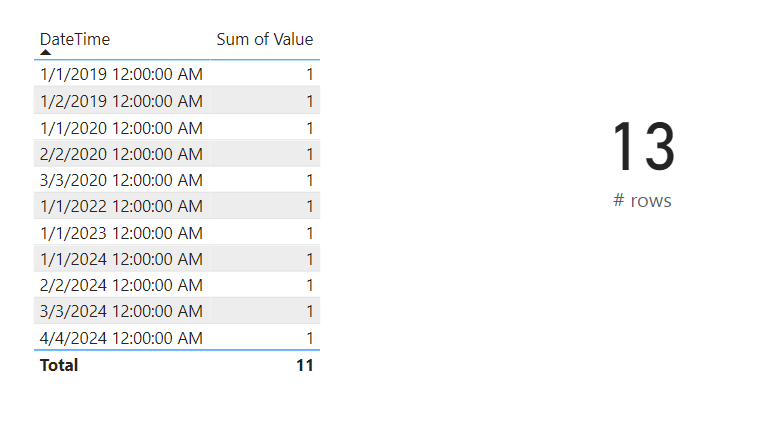
After an on-demand refresh, I can confirm the record is not showing up. Comparing the report (same screenshot as above) with the 13 rows of data in the database.
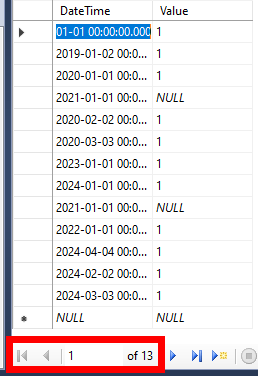
Let’s now execute the notebook and see what happens. The record from March 2024, should be fetched in the partition for 2024Q1 – and therefore after a successful refresh of all 2024 partition start showing up in the report. Based on below screenshot we can confirm it actually succeeded.
It is important to conclude that any records that will be added in non-existing partitions will not start showing up. Although this blog is written in May 2024, the Semantic Model does not yet conclude a partition for 2024Q205 capturing these records. So, If I would have just added a record for the first of May 2024 and then execute the Notebook, the record will not show up in the report. In order to let Power BI create and maintain the partitions, the refresh policy must be respected and therefore the parameter for apply_refresh_policy must be set to True or a regular scheduled (or on-demand) refresh has to be performed.
Wrap-up
Let’s be honest, someone good at python can probably optimize all code above by a lot! But most important, it works and performs well (at least to my experience). I think this solution could help in many cases to regularly update older partitions in your Semantic Model without necessarily stretching the incremental refresh window to many months or even years.
I’m going to express once more, the refresh policy will be by-passed intentionally in the solution that I built. If you don’t want this to happen, you have to update the code a bit. Also, I’ve applied logic based on the current year to find relevant partitions. Other logic might apply for you, especially if you manually create partitions and not necessarily based on incremental refresh policies.
 Data - Marc
Pingback: Dynamic Historical Partition Refresh in Power BI – Curated SQL
Pingback: Power BI Weekly Issue 261: 2024/06/04 – Quant Insights Network
Pingback: Fabric Use case : Sync dataflow and dataset refresh – My Blog Bertalan Rónai
Hi Marc My question is which report or solution to show the dataset to be refreshed with incremental refresh?
LikeLike
Hi Joe,
I don’t understand your question. Can you please rephrase?
–Marc
LikeLike